 9xbuddy
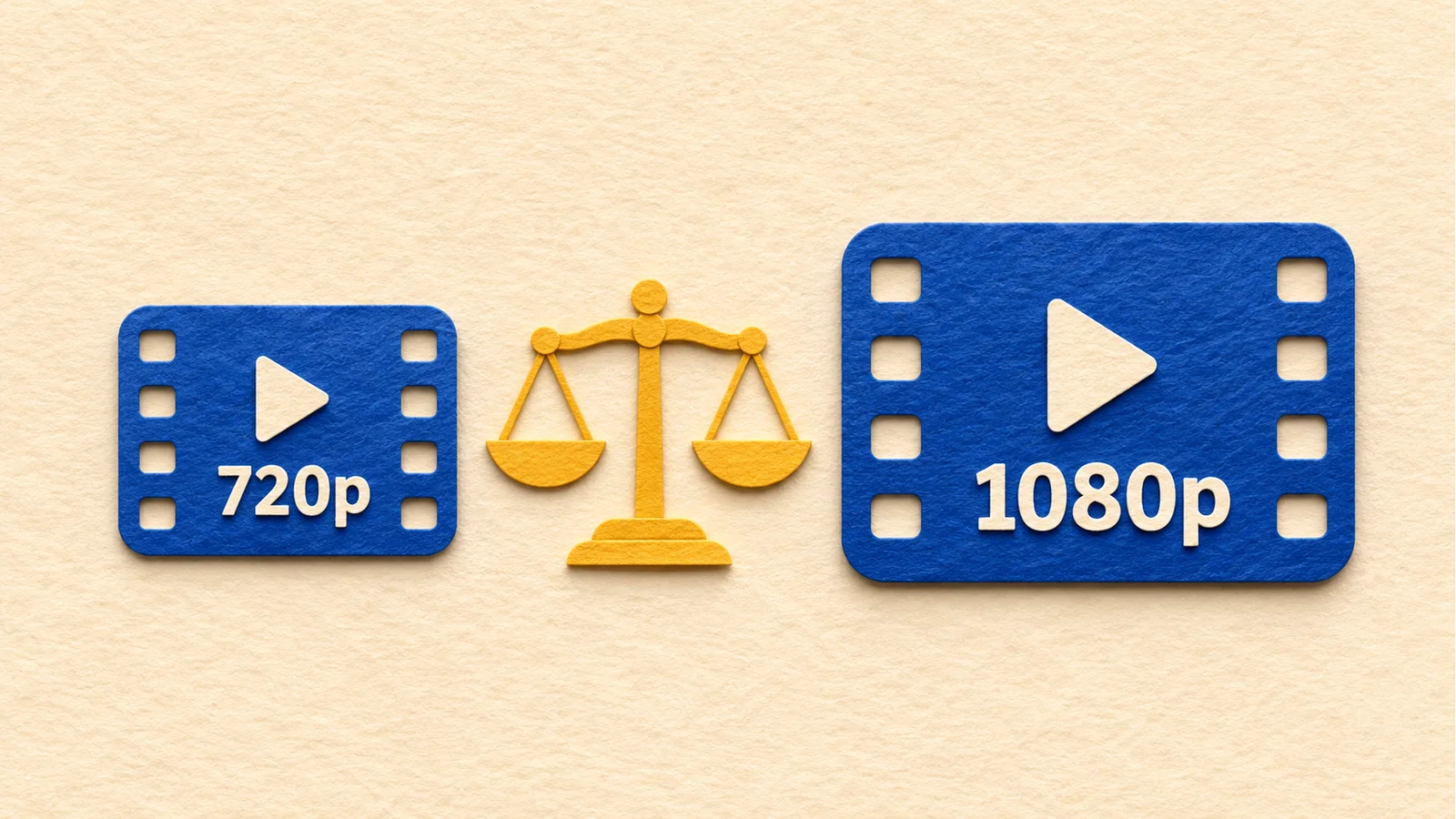
For most videos, 1080p is the best choice on a laptop or desktop monitor, and 720p is the smart pick when you are saving space or watching on a phone. Higher is not always better: a sharp copy of a soft source is still soft. The good news is that with 9xBuddy you see what is available and choose before anything is saved, so you never have to guess.
This guide is for the 9xBuddy desktop app on Windows, macOS and Linux.
Pick by screen, not by habit
The screen you watch on decides how much detail you can actually see.
- Phone or small tablet: 720p looks crisp at that size and the file is much smaller. You fit more videos on the device.
- Laptop: 1080p is the sweet spot. Text, faces and fine detail hold up on a full-screen view.
- Large monitor or TV: choose 1080p. A lower quality gets stretched, and the softness shows.
If you will watch on more than one screen, save the higher quality once. You can always play it on a smaller screen, but you cannot add detail to a small copy later.
Check the source before you chase resolution
A download can only be as good as the video it came from. A clip uploaded at 720p will not become sharper because you saved it as 1080p, and it only takes up more room. When the list of formats shows a lower top quality, that is the real ceiling for that video, so take the best one on offer and move on.
Look at the list for the one that matches how you plan to watch, rather than the biggest number.
Think about space
A higher resolution means a bigger file. If you are saving a whole playlist, a lecture series or a collection for a long trip, 720p can cut your storage use by a lot while still looking good on the screen in your hand. If you are keeping one video you care about, take the larger file.
Before a big batch, check free space on the destination drive. The Home screen shows it beside the compact download queue, with Open folder one click away.
Choose your quality in 9xBuddy
- Paste a video link into 9xBuddy and extract it.
- Read the list of available formats and qualities for that video.
- Choose the one that fits your screen and your storage.
- Start the download and follow it under Downloads. When it finishes, the file moves to Library.
Free includes video up to 1080p, so you can save a full HD copy without paying for anything. If a link will not give you the format you want, the download failed guide walks through the fixes.
A simple rule you can remember
- Watching on a phone or saving lots of videos: 720p.
- Watching on a laptop, monitor or TV: 1080p.
- Source tops out lower: take the best one listed.
Only download content you are permitted to save.
Get the quality you want, every time
Stop settling for whatever a website decides to hand you. Download 9xBuddy for desktop, paste a link, and pick the exact quality you want in seconds.