
 9xconvert
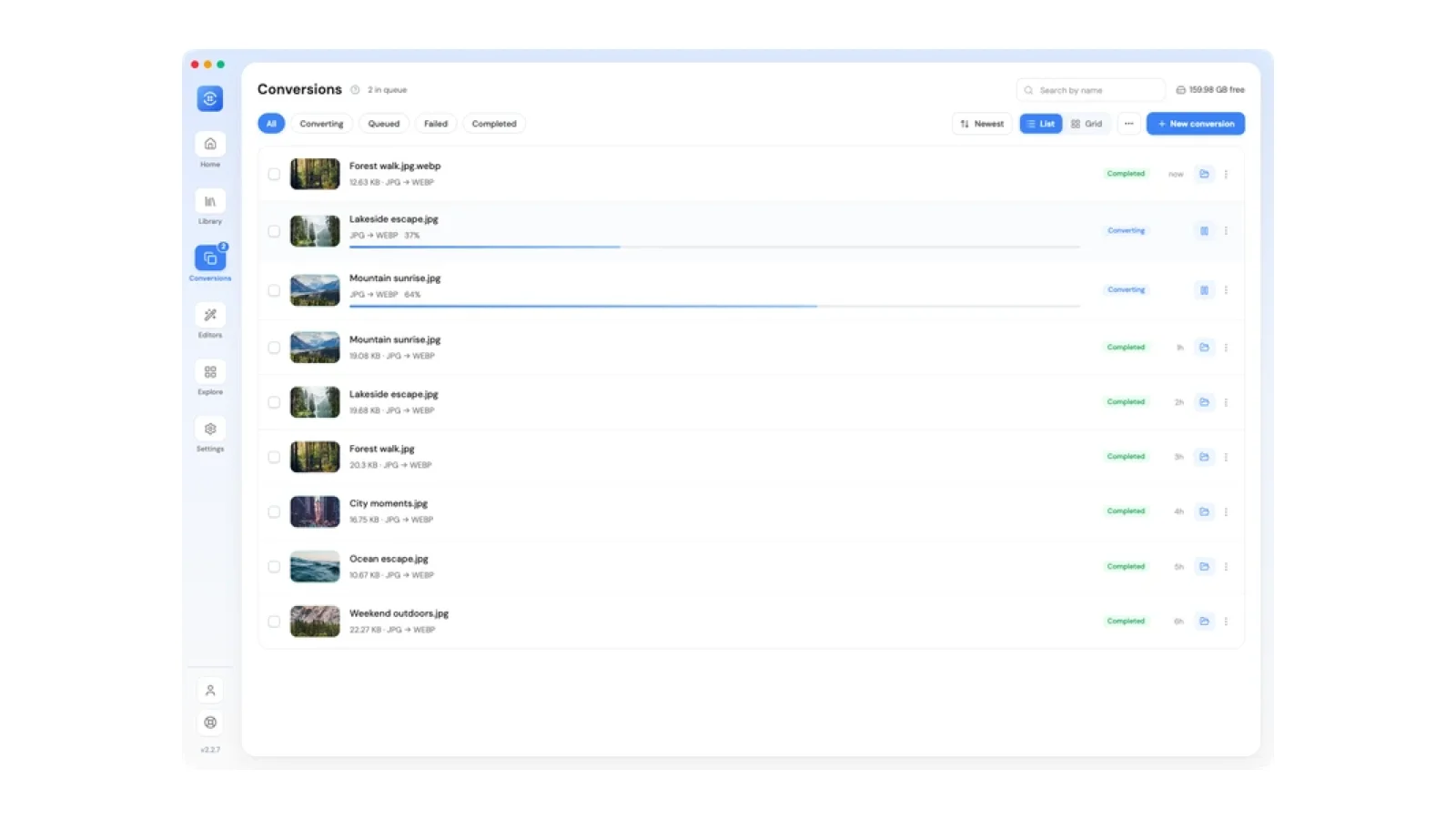
To batch convert files in 9xConvert for Windows, macOS, or Linux, add your local files on Home, select the ones you want to run, and choose a shared output format. Start the batch, then open Conversions to track each file separately. On Free, a normal batch can contain up to five files, provided enough of your rolling allowance remains.
Add files and choose an output
- On Home, drop your files into 9xConvert or use the file picker. For a first batch, try a few JPGs you want to turn into WebP images.
- Select the staged files you want to convert. Files can be added before you decide which ones to run.
- Choose one format supported by all the selected inputs. If a file needs a different format or quality setting, adjust that row separately.
- Apply your settings and start the conversion. An ordinary conversion writes a new output without replacing the source file.
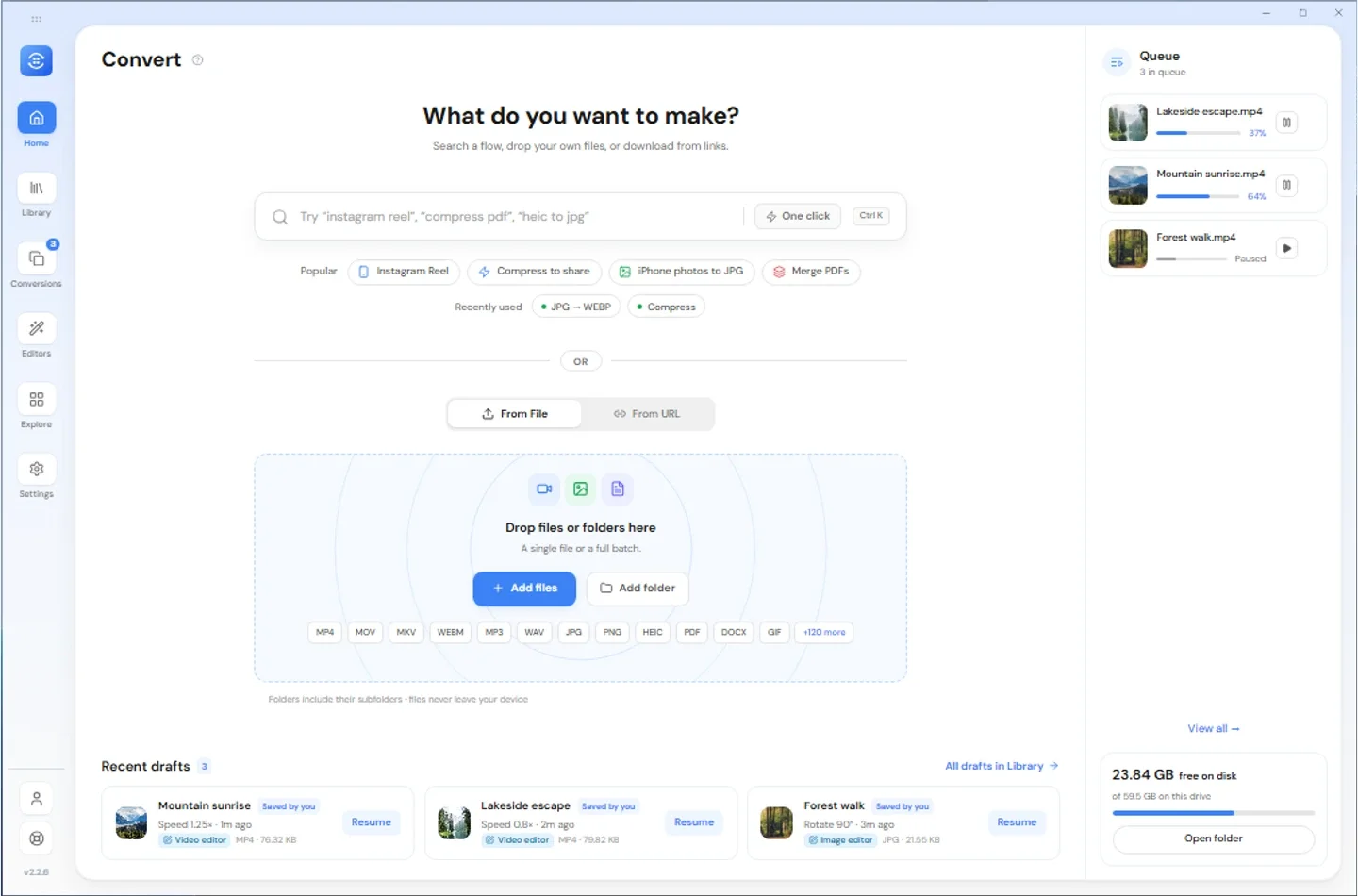
Start in Home and use the file picker or drop your files into the app.
Track jobs and find the finished files
- Open Conversions in the sidebar. Use Queued to see what is waiting and Converting to see work in progress. Some jobs can show a working indicator instead of an exact percentage.
- If a job fails, switch to Failed, read the reason, and retry that row if appropriate. You don't need to rerun the successful files. Individual pause, resume, retry, and cancel controls are available on Free and Pro where applicable.
- Switch to Completed and use the folder action on a finished row to reveal the saved output in your file manager. Use the row's open action if you want to open the file itself.
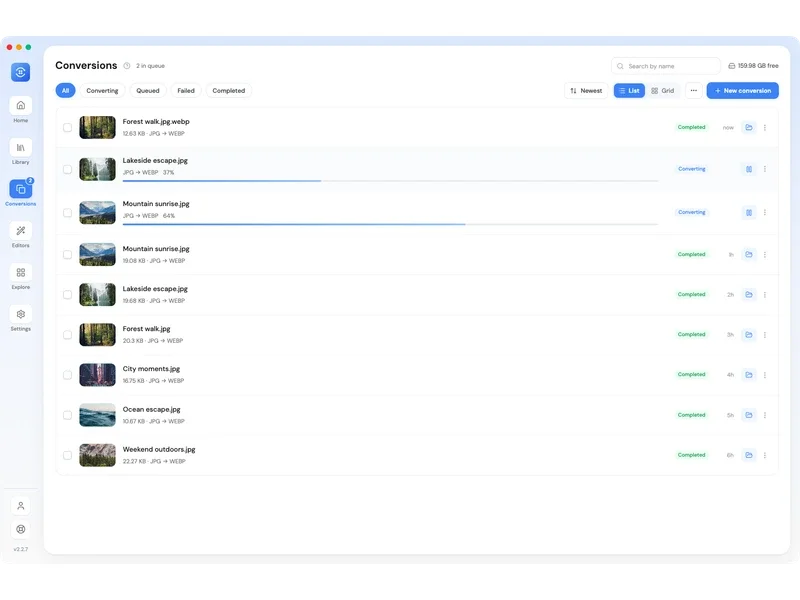
Use the status filters to narrow the list. A finished row's folder icon reveals its saved output.
Know what the Free allowance counts
Free allows up to five outputs in a rolling 24-hour window and runs one conversion at a time. A normal batch of three JPGs going to WebP uses three output slots. A split can use several slots from a single source. Active jobs reserve slots, and failed or canceled jobs release theirs.
Pro and an active trial remove the plan's batch and output caps, let you set Parallel Conversions, and unlock controls such as Pause all and Retry all. More jobs running at once still means more demand on your computer. If you are working with large inputs, start with a small batch before increasing concurrency.
Download 9xConvert to try a few local files. For more on job states, see the Conversions queue guide or compare the Free and Pro limits. For a different workflow, see how local file conversion works without uploads or how 9xConvert compares with HandBrake.

 9xchat